


The Best USB-C and Thunderbolt Hubs for Dell XPS Laptops (XPS 13, XPS 15)
There’s a special kind of frustration that comes from opening a brand-new Dell XPS, admiring those razor-thin edges—and then realizing you’ve got two USB‑C ports and a desk full of displays, drives, and accessories. The right USB‑C hub or Thunderbolt dock turns that pain into a one‑plug desktop setup: power, multiple monitors, gigabit networking, fast storage, and a clutter‑free workflow.
Below you’ll find the best USB‑C and Thunderbolt adapters for Dell XPS owners, with a focus on 4K/60Hz video output, reliable pass‑through charging, and enough USB‑A ports to satisfy real-world peripherals. You’ll also see clear notes on Windows compatibility, drivers, and what to expect with XPS 13 vs. XPS 15 models.
Why this category matters for Dell XPS owners
Dell XPS laptops lean hard into minimalism. That’s great for portability but tricky when your day includes a 4K monitor, DSLR SD cards, an audio interface, and a mechanical keyboard. A hub or dock consolidates all that into a single USB‑C or Thunderbolt connection. You sit down, plug in one cable, and your entire desk powers up—external displays snap on at the right refresh rate, your wired network connects, and your accessories just work.
Performance-wise, 4K/60Hz matters. Running a 4K display at 30Hz can make the desktop feel sluggish and text less crisp when you scroll. Aim for hubs that support 4K/60 via HDMI or DisplayPort, and match that to your XPS’s DisplayPort version (more on that below). For creators, SD card speed and port count are equally critical—ingesting a 128GB card should take minutes, not an entire lunch break, and you shouldn’t have to choose between your audio DAC and your backup drive.
Finally, power delivery is more than a nicety—it’s foundational. A hub that passes at least 65W to the laptop keeps your XPS topped up during meetings and edits. For XPS 15 owners, 100W PD is the sweet spot for general use; just know that under sustained GPU/CPU loads, Dell’s 130W factory adapter remains the gold standard.
Typical use cases: from creators to commuters
- Multi‑monitor knowledge workers: If you juggle spreadsheets, dashboards, or IDEs, a dual 4K/60 setup is transformative. You’ll want a hub that supports MST (Multi‑Stream Transport) on Windows or a Thunderbolt dock that can push two 4K panels without halving USB throughput.
- Creators on the go: Photographers and videographers benefit from a dock with reliable SD card ingest, stable 4K/60 output for color‑accurate external displays, and multiple 10Gbps USB ports for fast SSD scratch disks or card readers.
- Hybrid workers and students: A travel‑friendly USB‑C multiport adapter with a single 4K output, PD‑in, and a couple of USB‑A ports goes a long way. Keep the desk streamlined at home and plug into conference room displays without juggling dongles.
- Power users with XPS 15: If you lean on an XPS 15’s GPU, be realistic about power draw. A dock with PD 100W is fine for typical workloads but may not sustain peak performance and battery charge simultaneously. For heavy sessions, connect the Dell adapter directly or choose a dock designed to accept higher‑wattage power bricks.
How to shop: specs that actually matter for XPS
- Video output and bandwidth: Look for HDMI 2.0 or DisplayPort 1.4 for 4K/60. On older XPS models with DP 1.2, you may be limited to 4K/30 per display or need to run 1440p/60. Multi‑monitor over USB‑C generally uses MST on Windows; macOS handles displays differently, but this roundup is tailored to XPS/Windows.
- Power delivery (PD): Minimum 65W for XPS 13, 90–100W for XPS 15 to avoid battery drain in typical use. Note: The XPS 15 may show a “slow charger” notification with non‑Dell 100W sources; it usually still charges, just not at maximum speed under full load.
- USB‑A ports and speed: Two or more USB‑A 3.x ports are practical for keyboards, dongles, and drives. If you edit off external SSDs, favor hubs advertising USB 3.2 Gen 2 (10Gbps) or better.
- SD card reader: If you shoot on SD, look for clearly stated UHS‑I or UHS‑II support. For most mirrorless cameras, UHS‑I is fine; UHS‑II speeds are a bonus.
- Ethernet, audio, and extras: Wired networking minimizes video call instability. A 3.5mm audio jack can reduce USB bus noise for headphones or microphones.
- Chipset and thermals: Good docks run cool and remain stable under heavy I/O. That’s harder to judge from a listing, so stick with designs that advertise USB 3.2 controllers and clear thermal design.
Windows compatibility and driver notes for Dell XPS
- MST vs. DisplayLink: Most USB‑C/Thunderbolt hubs in this roundup use DisplayPort Alt Mode with MST for multiple displays on Windows. This is driverless but depends heavily on your XPS GPU/CPU and DP version. If you need three displays on a non‑Thunderbolt port, you typically need a DisplayLink dock (not covered here).
- Triple‑monitor claims: Some hubs advertise triple 4K/60. In practice, that requires a Thunderbolt‑equipped XPS with DP 1.4 and DSC, and still may negotiate a mix (e.g., 4K/60 + 4K/60 + 4K/30 or 1440p/60). Expect variance by model year and GPU.
- Update your stack: For best results, update Intel/NVIDIA graphics drivers, Thunderbolt firmware, BIOS, and Windows. On first connect, approve the Thunderbolt device in the Windows Thunderbolt Control Center for older XPS generations.
- Cable quality counts: To sustain dual 4K/60, use a short, certified 40Gbps cable for Thunderbolt docks or a high‑quality USB‑C cable rated for 4K/60 DP Alt Mode.
Our selection criteria
- 4K/60Hz video via HDMI and/or DisplayPort for at least one monitor
- Reliable PD passthrough, ideally 65–100W for XPS models
- Multiple USB‑A ports for legacy peripherals
- Practical extras: SD card reader, Ethernet, audio
- Solid thermal behavior and stable Windows performance
- Honest, detailed marketing claims and positive long‑term owner feedback
- Good value without compromising on core features
Below are the standouts for Dell XPS owners—from full desk docks to travel‑friendly multiport adapters.
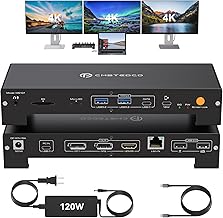
1. Best overall for XPS workstations: 15‑in‑1 USB‑C/Thunderbolt Dock — Triple 4K@60Hz Monitors, 120W Power (PD 100W), USB 3.2 & SD
Price and availability are accurate as of 12/22/2025 11:25 am GMT and are subject to change.
This 15‑in‑1 dock is the no‑drama choice for a permanent desk. If your Dell XPS supports Thunderbolt and DP 1.4, you can drive multiple 4K/60 displays while keeping your laptop charged at up to 100W. The inclusion of multiple USB 3.2 ports and an SD card reader makes it particularly appealing to content creators who bounce between fast external SSDs and camera media. It’s built for stability rather than portability, which is exactly what you want on a primary workstation.
On Windows, triple display arrangements vary by XPS model year and GPU. Consider this dock “future‑proof” in bandwidth terms, but plan your setup around dual 4K/60 as the consistent baseline, with the third screen as a flexible add—often at 4K/30 or 1440p/60 depending on host capabilities. Power users with an XPS 15 will appreciate the 100W PD but should keep the Dell 130W adapter handy for render or compile marathons.
2. Best budget multi‑monitor pick: Melelink USB‑C Docking Station for 3 Monitors — 2×4K HDMI, DisplayPort, VGA & 100W PD

Price and availability are accurate as of 12/22/2025 11:25 am GMT and are subject to change.
The Melelink offers a compelling way to run two or even three external monitors from a single cable on Windows XPS laptops. With two HDMI ports, a DisplayPort, and a VGA fallback, it adapts to office monitors and conference rooms without drama. For dual 4K displays, many XPS systems can achieve 4K/60 on at least one port, with the second at 4K/60 or 4K/30 depending on the laptop’s DP version and GPU. Either way, PD 100W means you won’t lose battery under normal workloads.
As with most MST‑based USB‑C hubs, there’s a bandwidth budget. Pushing multiple high‑resolution displays may step down refresh rates or reduce available USB throughput. If you edit large files on external SSDs while running three monitors, plan accordingly. For most productivity tasks—Office, browsers, IDEs—this hub nails the essentials at an approachable cost.
3. Best for creators eyeing higher‑end panels: 15‑in‑1 USB‑C Dock for Dell/HP/Lenovo/Surface — 3‑Monitor (8K DisplayPort + 2×4K HDMI) with 100W PD

Price and availability are accurate as of 12/22/2025 11:25 am GMT and are subject to change.
If you’re connecting a color‑accurate 4K panel today and keeping an eye on 8K tomorrow, this 15‑in‑1 dock gives you room to grow. The DisplayPort path is tuned for high‑resolution workflows, while two HDMI outputs handle side monitors for timelines, tools, or reference material. With PD up to 100W, plus a creator‑friendly mix of USB and (typically) SD reader support, it’s built for a modern XPS‑based editing station.
Reality check: 8K on Windows requires the right combination of DP 1.4 with DSC, driver support, and GPU horsepower. Running 8K alongside additional 4K screens often dials back refresh rates or color depth. Treat the 8K headline as “capable when the stars align” and enjoy rock‑solid dual 4K/60 as the everyday baseline.
4. Best travel companion when you don’t need a display: 6‑in‑1 USB‑C Hub for MacBook Pro/Air — 3x USB 3.0, SD/TF Card Reader & 100W PD

Price and availability are accurate as of 12/22/2025 11:26 am GMT and are subject to change.
Not every session needs a monitor. For photographers, students, and travelers who mainly need to ingest SD cards, attach a couple of USB‑A accessories, and power the laptop, this 6‑in‑1 hub is refreshingly compact. It’s plug‑and‑play on Windows, and the dedicated PD‑in means you can keep the XPS topped up while bus‑powering several peripherals.
The trade‑off is clear: no video output. If you occasionally present or dock to a 4K screen, consider one of the HDMI/DP options above. But if your workflow is “copy, charge, go,” this little hub covers the essentials without adding weight to your bag.
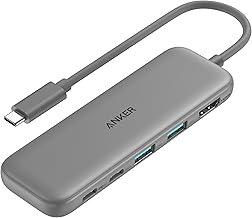
5. Best compact multiport adapter with 4K output: Anker 5‑in‑1 USB‑C Hub with 4K HDMI and Powered USB‑C + 2 USB‑A Ports (Grey)
Price and availability are accurate as of 12/22/2025 11:26 am GMT and are subject to change.
When you want your XPS to plug into a hotel TV, classroom projector, or a single 4K/60 monitor—without the heft of a desk dock—this Anker multiport adapter is a sweet spot. HDMI handles the display, while pass‑through power and extra ports keep your keyboard/mouse and a portable SSD connected. It’s a tidy, reliable solution that’s easy to toss in a sleeve or keep in a conference room kit.
Just remember it’s built for mobility, not maximum expansion. If your day‑to‑day includes dual 4K screens, step up to a full dock. For everyone else, it nails the 80/20 needs of modern XPS use.
FAQ
- Can my Dell XPS 13 or 15 run two or three external monitors through a USB‑C hub?
- Often yes, but details matter. On Windows, most hubs use DP Alt Mode with MST. Dual 4K/60 is realistic on many Thunderbolt‑equipped XPS models. Triple displays are more variable and may require a mix of 4K/60 and 4K/30 or 1440p/60. Older XPS models with DP 1.2 may downshift refresh rates. If you need guaranteed triple displays at high refresh, consider a Thunderbolt dock with explicit multi‑monitor support or a DisplayLink‑based solution.
- Why does my XPS 15 say “slow charger” when I’m using a 100W PD dock?
- The XPS 15’s factory adapter is 130W. A 100W PD dock usually powers and charges fine for typical work, but under peak GPU/CPU load it may not keep up perfectly. You can still use the dock; just expect the notification and potential slower charging during heavy sessions.
- Do I need drivers for these hubs on Windows?
- For MST‑based USB‑C/Thunderbolt hubs, no additional drivers are typically required—Windows handles DP Alt Mode natively. Keep your GPU drivers, BIOS, and Thunderbolt firmware current. If you later choose a DisplayLink dock (not listed here), you’ll need the DisplayLink driver.
- Will 4K/60 work on my monitor and cable?
- Use HDMI 2.0 or DisplayPort 1.4 cables from reputable brands and keep them short. Cheap or long cables can cause the OS to fall back to 4K/30 or lower. If you see flicker or unexpected refresh limits, swap the cable first.
- Can I run fast external SSDs and multiple displays at the same time?
- Yes, but bandwidth is shared. On MST‑based hubs, driving multiple high‑res displays may reduce available USB throughput. If you’re editing directly from an external SSD while pushing dual 4K/60, consider a Thunderbolt dock or connect the SSD to a port with dedicated bandwidth.
The decisive close: match the dock to your XPS and your day
- For the most capable single‑cable desk setup, choose the 15‑in‑1 USB‑C/Thunderbolt Dock. It’s the easy button for dual 4K/60 and a stable, well‑powered workstation, with triple displays possible on newer XPS models.
- On a tighter budget but still want multiple screens? The Melelink USB‑C Docking Station balances 100W PD with flexible multi‑monitor options (2× HDMI + DP + VGA), perfect for productivity‑first Windows setups.
- Eyeing higher‑end panels or an 8K path? The 15‑in‑1 USB‑C Dock with 8K DP gives you room to grow, with realistic day‑to‑day strength in dual 4K/60 plus a third screen.
- Need portable I/O without a display? The 6‑in‑1 USB‑C Hub (USB‑A + SD/TF + 100W PD) is a compact companion for photographers, students, and travelers.
- Want a light, reliable adapter for one 4K screen? The Anker 5‑in‑1 is a go‑to travel pick with just the right ports and pass‑through power.
A last tip: keep your Dell system firmware and GPU drivers updated, and use quality cables. With the right hub and a bit of setup care, your XPS transforms from a minimalist laptop into a no‑compromise desktop—without giving up its portability.








Leave a Comment